A slip box for your Mac.
Slipbox is a free Zettelkasten: short notes in your own words, each one a plain Markdown file in a folder you choose, linked into a web of ideas that grows with your work.
For macOS 11 or later. Free for personal, academic and non-profit use.
A method, not a filing system.
A Zettelkasten, German for “slip box”, is a collection of short notes that point to one another. Between 1951 and 1996 the sociologist Niklas Luhmann kept one of about 90,000 notes and wrote of it as a partner in communication. Bielefeld University’s Niklas Luhmann-Archiv now holds it. Slipbox is built around the habits that made his work.
One idea per note.
Algorithmic governance erodes accountability
is a note; Notes on chapter 3
is not.
Your own words.
Rewriting an idea is where understanding happens. Keep what a source says, with its citation, apart from what you make of it.
Links are the structure.
No folders. When you write a note, link it to the notes it speaks to, and say why in the sentence around the link.
Write for later.
Each note is material for some future piece of writing, so write it to make sense on its own, months from now.
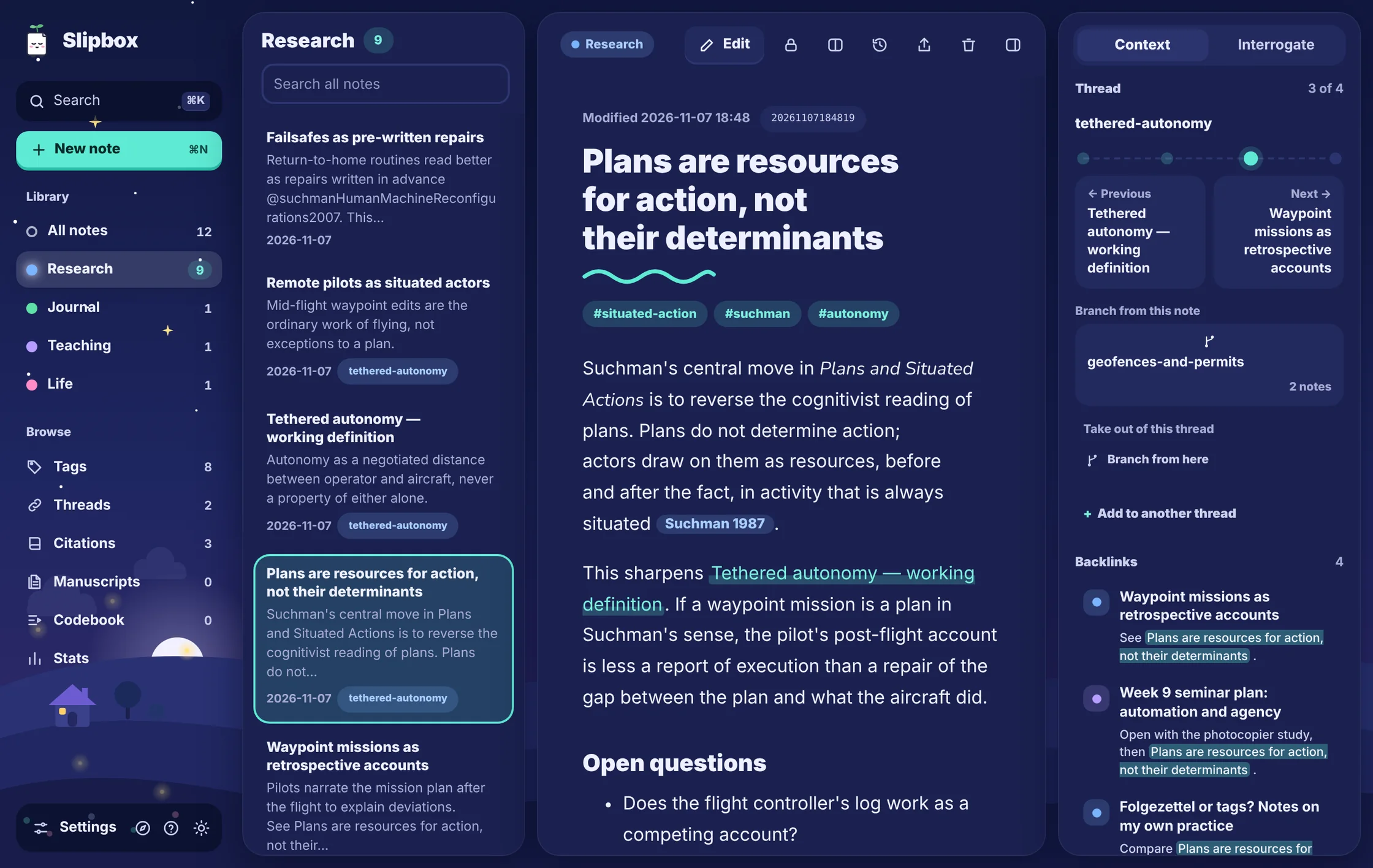
Everything a slip box needs, in one window.
A sidebar, your notes, the note itself, and a side panel showing how it connects to the rest. Every note gets a permanent ID, so links survive renaming.
Linked notes
Type [[ to link to another note. Each note shows the notes that link to it, with the sentence around each link, and mentions of its title that aren’t links yet.
![Writing a note: typing [[geof opens the Link to a note picker, which offers Geofences as law written in software.](img/picker-dark.webp)
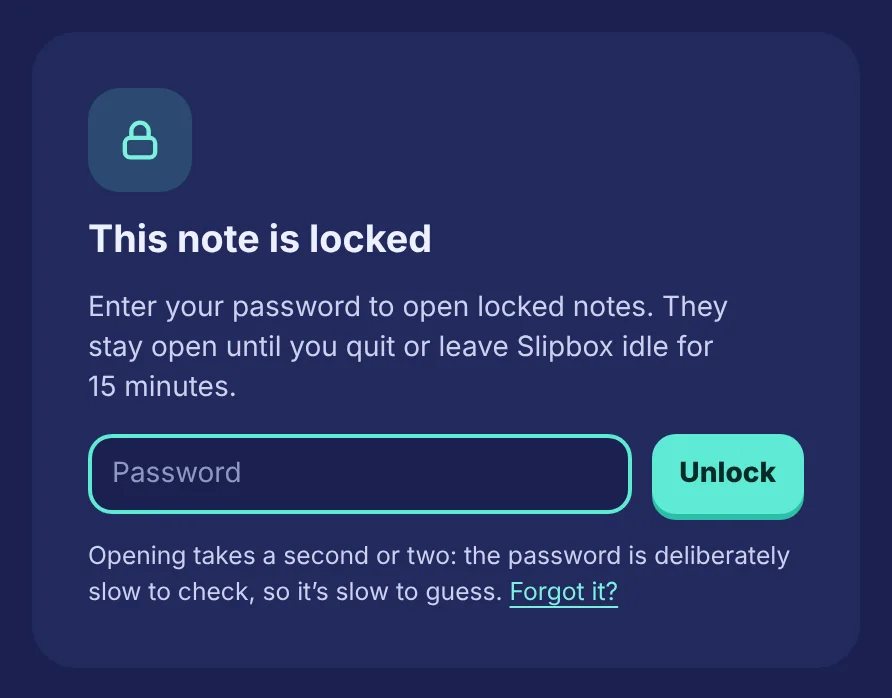
Locked notes
Lock a note, or every note of a kind. Its text is encrypted on your Mac with AES-256-GCM, opens only with your password or recovery key, and is never sent to an AI provider.
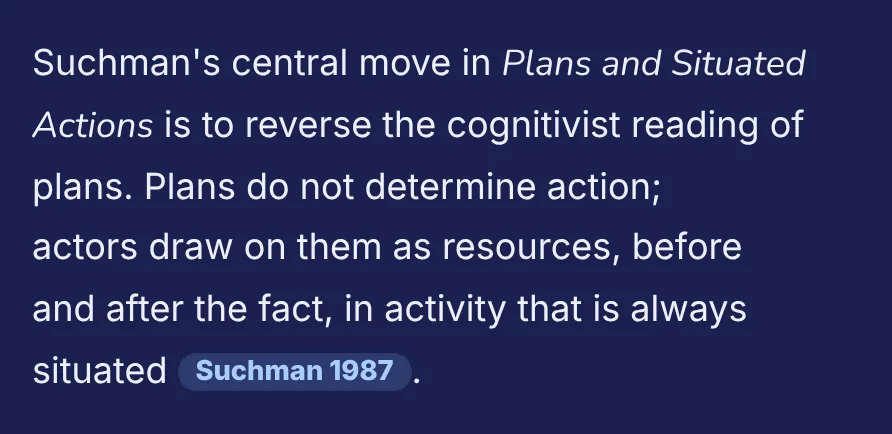
Citations from Zotero
Type @ to cite from the .bib file you export from Zotero. The file keeps the citekey; you see author and year.
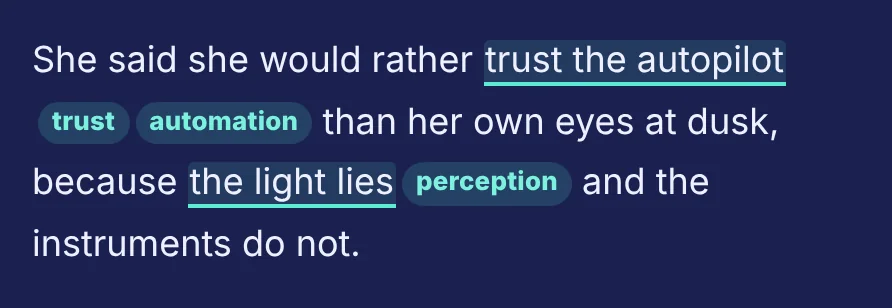
Qualitative coding
Select a passage, press ⇧⌘C and give it a code. The Codebook gathers every code’s passages, with definitions, overlaps and CSV export.
Find anything
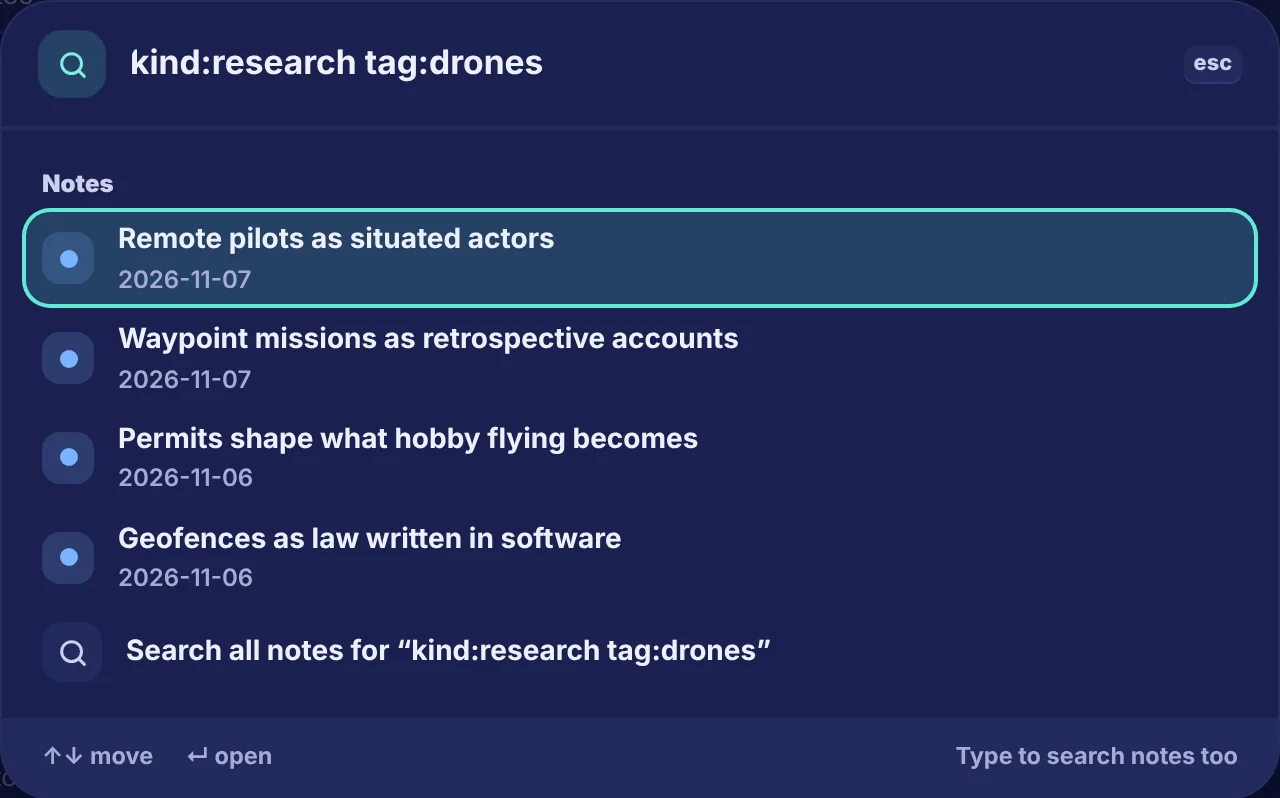
⌘K finds any note or runs any command. Filters such as kind:, tag:, code: and after: narrow the results.
Saves as you write
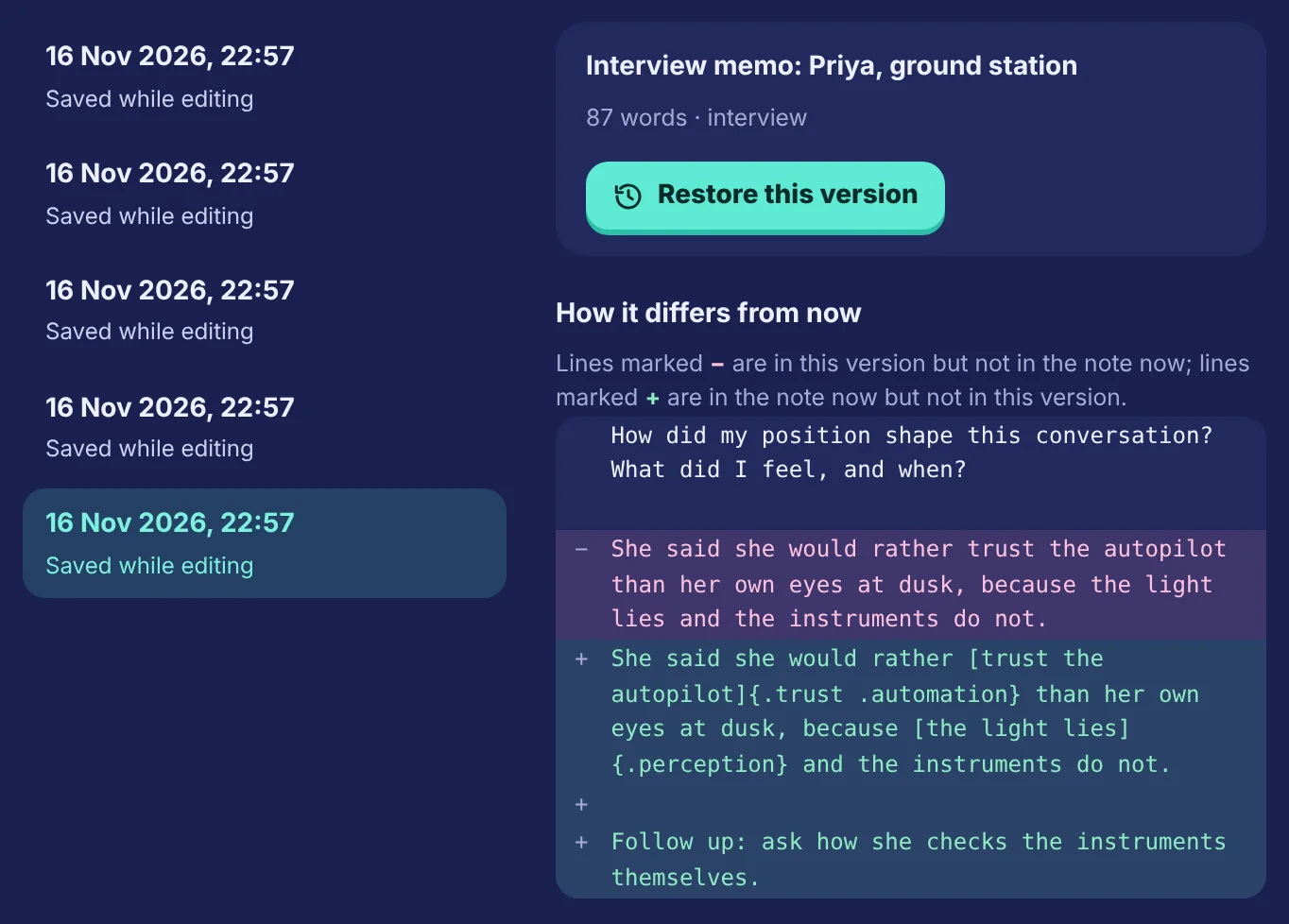
A note saves itself a moment after you stop typing, and again when you quit. Earlier versions are kept, as many as you choose, so you can see what changed and go back.
Threads
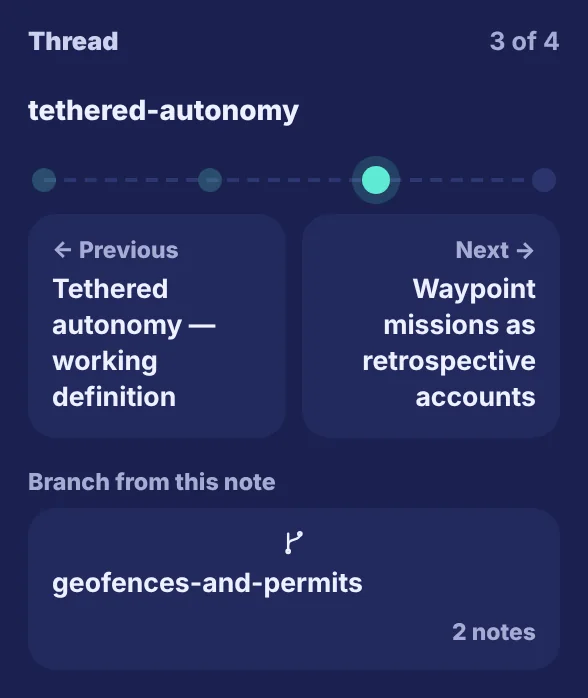
Keep notes that continue one another in order, like the numbered branches of Luhmann’s slips. Any note can join a thread, at the place you choose, and a thread can branch at any note, ten levels deep.
Manuscripts
Assemble notes and whole threads into one draft, under your own headings, write around them, and export it as one document.
Templates
Start from a template for an interview memo, fieldnote, reading note or lecture plan, or make your own.
Bring notes in
Import Markdown from Obsidian, Zettlr, Bear, a Notion export or any folder. The files are copied, never changed; titles, tags, dates and the links between them come along.
Export
Turn a note, a thread, a tag or a manuscript into a Word, LaTeX, HTML, OpenDocument or EPUB document, with formatted citations.
Optional AI
Ask questions about a note, get tag suggestions and see related notes, through a cloud provider or a model on your own Mac. It is off until you set it up, and locked notes are never sent.
Your look
Four light and three dark themes that can follow your Mac, with a choice of fonts, text sizes and accent colours.
Your notes stay yours.
No account, no cloud service, no analytics. Your notes are ordinary .md files that you can open, edit, sync or back up with any other tool, with or without Slipbox.
Plain files in your folder
Each note is one Markdown file, named by its permanent ID and title. Tags and threads are written at the top of the file, and a link is the other note’s ID in double brackets, which Slipbox shows as that note’s title.
Everything else stays on your Mac
Settings, search indexes and note history live in ~/Library/Application Support/com.shivissar.slipbox/. The indexes can be rebuilt from your notes.
One small request a day
Once a day Slipbox asks GitHub whether a newer version is out. That sends your IP address and Slipbox’s version number, and nothing from your notes. You can turn it off.
AI only if you ask for it
If you turn the AI features on, note text goes to the provider you chose; Ollama keeps everything on your Mac. The Privacy page inside the app lists exactly what is sent where. API keys are kept in plain text in the settings folder, so treat it like a password.
Download and install.
Installing takes about a minute. Slipbox is signed and notarised by Apple, so it opens like any other app.
Copy it to Applications
Double-click
Slipbox-5.4.0.dmg, drag Slipbox onto the Applications folder, then eject the disk image.Open it
Double-click Slipbox in Applications. The first time, macOS asks whether you want to open an app downloaded from the internet. Click Open.
Pick a notes folder
The first time it opens, Slipbox asks where to keep your notes. A folder in iCloud Drive or Dropbox gives you backups for free.
If that folder is in iCloud Drive and Optimise Mac Storage is on, macOS may remove older notes from your Mac to save space. On macOS 15 (Sequoia) or later, Control-click the folder in Finder and choose Keep Downloaded.
What “signed and notarised” means
Slipbox is signed with my Apple Developer ID and notarised: Apple’s automated check scanned it for known malware before release (Apple’s guide). When you first open it, macOS confirms that the copy you downloaded is the one Apple checked and that nothing has changed since.
- It is still worth checking the download. Download only from here or the GitHub releases page, and compare the checksum. The source code is public, so you, or someone you trust, can read it or build it yourself.
- It tells you about updates but never installs them. You download each new version yourself, and macOS checks it the same way.
- Work and university Macs may refuse it. Macs managed by an IT department can be set to open only App Store apps. Ask your IT team rather than working around their settings.
- It isn’t sandboxed. Like most apps from outside the App Store, it could read any file you can. In practice it only touches your notes folder, your export folder, your Zotero
.bibfile if you connect one, and its own settings folder.
Updating and uninstalling
To update, click the notice in the sidebar (or Check now in Settings, under Updates), download the new version, quit Slipbox, drag the new app into Applications and choose Replace, then open it. Your notes and settings aren’t touched.
To uninstall, drag Slipbox from Applications to the Bin. To remove its settings, indexes and note history too, delete ~/Library/Application Support/com.shivissar.slipbox/. Your notes folder stays where it is.
The full installation guide covers connecting Zotero, locking notes, turning on the AI features, and what to do when something goes wrong.
Free for non-commercial use.
Slipbox is released under the PolyForm Noncommercial License 1.0.0. It permits personal use without any anticipated commercial application, such as personal study, hobby projects and research for the benefit of public knowledge, and use by charitable, educational, public-research, public-safety or health, environmental and government organisations. It doesn’t permit selling Slipbox, building it into a commercial product, or using it for a company’s business. That makes it source-available rather than open source in the strict sense. The licence text decides.
The code is on GitHub at github.com/shivissar/Slipbox, with instructions for building the app yourself. Problems and suggestions are welcome as issues; I would especially like to hear from anyone on an Intel Mac, or anyone who keeps a Zettelkasten for research and teaching.
I built Slipbox for my own research, teaching and journaling, and wrote it with Claude, Anthropic’s AI model, as my coding partner.
If you wish to cite Slipbox
Slipbox is archived on Zenodo. The DOI below stands for all versions and always leads to the latest.
- APA
- Issar, S. (2026). Slipbox: a Zettelkasten for Mac. (Version 5.4.0) [Computer software]. Zenodo. https://doi.org/10.5281/zenodo.24086145
- Chicago
- Issar, S. Slipbox: A Zettelkasten for Mac. V. 5.4.0. Zenodo, released November 16, 2026. https://doi.org/10.5281/zenodo.24086145.